Both devices can use purchase records from the same account. Before downloading, verify the app name, developer and app ID. When changing devices, check your purchased items first; downloading again does not mean you need to buy it again. Eligibility to download depends on what the store shows for your current account.
Shadowrocket Official Guide
Shadowrocket Guide
Download, setup and connect
A cross-platform rule-based proxy client with rule-based traffic routing. iPhone / iPad: $2.99 one-time in the App Store; Mac, Windows, Android and Linux versions are free.
Current version Loading · Mac, Windows, Android and Linux versions are free
First use: import a configuration and connect step by step →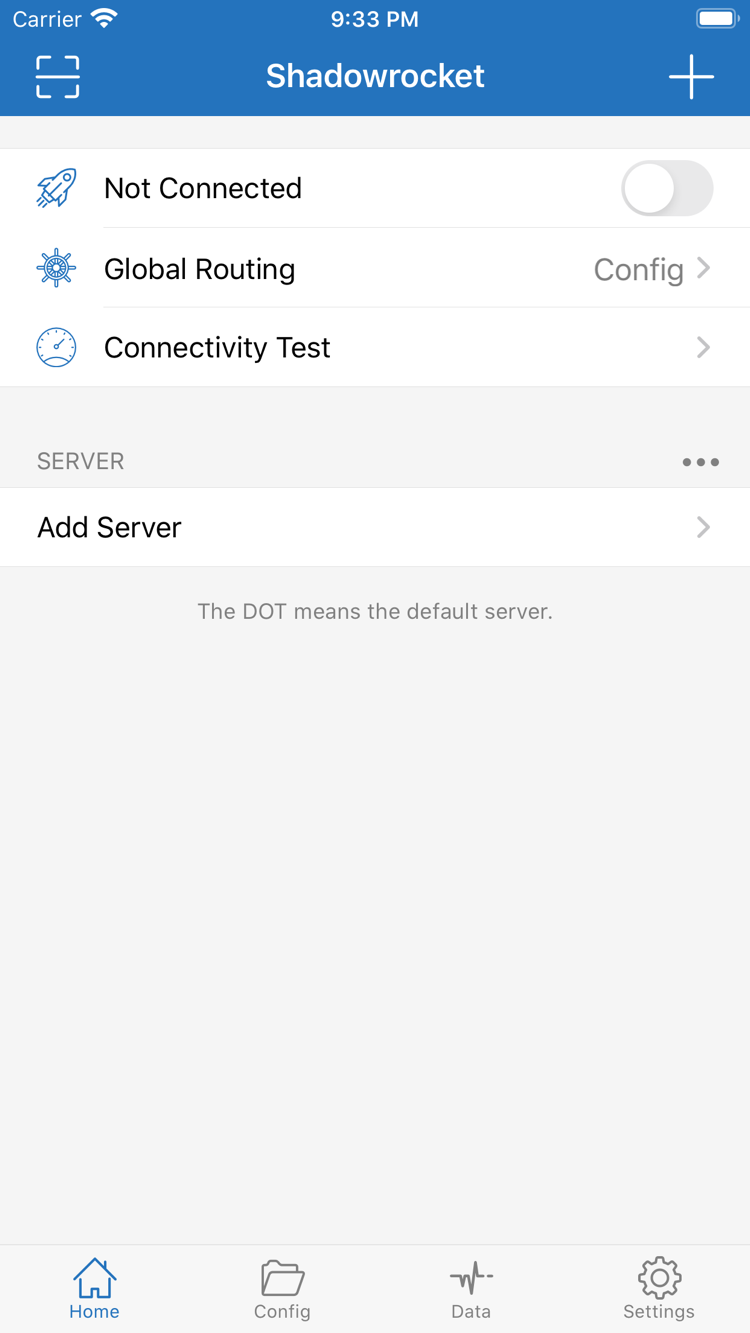
Platforms and how to get the app
Choose Shadowrocket for your device
iPhone / iPad: $2.99 one-time in the App Store; Mac, Windows, Android and Linux versions are free. Desktop and Android installation packages are available from this site's download page, with links under /dl/shadowrocket/. Check your device and package format before installing.
Check the chip or processor in About This Mac and choose the matching version; do not identify it by the computer's appearance. If the first launch says the developer cannot be verified, confirm the download came from this site, then check for “Open Anyway” under System Settings → Privacy & Security. See the download page for detailed steps.
Run the installer after downloading and follow the system prompts to finish setup. If SmartScreen blocks the launch, first confirm the file came from this site, then select “More info → Run anyway” in the prompt. On computers managed by an organization, ask an administrator to confirm permissions instead of repeatedly changing system protection settings.
Open the download page in your system browser and follow the prompt to allow that browser to install unknown apps. You can revoke this permission after installation. If tapping the download link inside WeChat does nothing, switch to the system browser. On first connection, confirm the system network permission, then check the switch state and access results.
Choose deb for Debian / Ubuntu and rpm for Fedora; for other distributions, check the AppImage runtime requirements first. AppImage needs execute permission, while deb and rpm dependencies are handled by the relevant package manager. The download page lists commands and installation notes; match your distribution before proceeding.
Installing the client does not provide a usable server configuration. The following steps assume you already have your own subscription or server details.
View all platforms →Connection modes, configurations and diagnostics
Understand which layer each setting controls before changing parameters. Global Routing determines how traffic is handled, Config determines the rules, and the server entry determines the connection target. Change one item at a time to identify the cause of any difference.
Global Routing: choose how traffic is handled
Under Global Routing on Home, Config mode handles connections according to the active configuration rules; Proxy mode checks the proxy route through the selected server; Direct mode shows access results without using a proxy. For everyday rule-based routing, enable the correct Config first, then confirm the selected server. If some websites behave unexpectedly, temporarily switch modes for comparison, then restore the original setting. An enabled connection switch alone does not prove that the rules matched correctly or that the target is reachable.
Config / Proxy / DirectCheck the current mode first, then determine why a connection went direct or through a proxy.
On Demand: check triggers and recovery
On Demand starts a connection when configured conditions are met; it is not a setting for increasing connection speed. Check the current rules in Settings, confirm when the connection should start and stop, then test in the relevant network environment. If the switch turns back on automatically after being turned off, check these trigger conditions before deleting a configuration. First verify a manual connection, then add automatic conditions one at a time. If the results differ from expectations, temporarily disable On Demand and retest with the same server and Config to narrow down the issue.
Settings → On DemandVerify a manual connection before testing automatic triggers.
Config: understand rule order
Config manages configuration files and rules. Rules are checked in order, so an earlier match affects later processing. When adding a rule, check both its content and its position. DOMAIN-SUFFIX matches a specified domain and its subdomains, IP-CIDR matches an address range, and FINAL handles remaining connections. Save a copy before editing and confirm that policies such as PROXY have a corresponding meaning in the active configuration. When changing devices, preserve configurations with iCloud sync and a manual export. After restoring them, check which file is enabled and which servers it references.
DOMAIN-SUFFIX,example.com,PROXY
IP-CIDR,192.168.0.0/16,DIRECT
FINAL,PROXY
Syntax examples only; this is not a complete file to replace an existing configuration.
Subscribe: import and manage an existing configuration
Subscribe handles subscription details you already have. Get a link compatible with Shadowrocket from your own service provider, then add it by following the guide. After importing, check the number of entries and their protocol types; do not mistake a webpage URL for subscription content. If an update fails, check that the link is complete, the current network can reach it, and the provider's response format is valid. Updates may overwrite server fields maintained by the subscription, so save a copy before making manual edits. Subscription URLs may contain access credentials; do not include them in public screenshots, logs or support requests.
Subscribe → Update existing subscription
Add Server → Add a server manually
A subscription and Config are different objects; updating one does not update the other.
Protocols: match fields to your server
Shadowrocket supports protocols including Shadowsocks, VMess, VLESS, Trojan, Hysteria2 and WireGuard. Use details provided for your own server when adding one. In Add Server, select Type first, then enter Host, Port and the identity details required by that type. Scan QR Code can reduce manual entry, but check the transport method, TLS and related name fields afterward. Do not change the protocol type just because a connection times out; confirm the protocol actually used by the server before investigating the port or parameters.
Type → Host → Port
Scan QR Code
Required fields vary by protocol; these example fields are not universal parameters.
Diagnostics: turn symptoms into testable questions
Connectivity Test on Home checks connection status, while Diagnostics in Settings can help locate issues. First determine whether the problem affects one server, one website or all access, then test while keeping other conditions unchanged. Data traffic statistics can show connection activity, but traffic does not prove that an application request succeeded, and test values are not the same as actual download speed. When reporting an issue, note the mode, network environment and error text, and hide server credentials. Troubleshoot timeouts, DNS issues and incorrect rule matches using their separate procedures.
Connectivity Test
Settings → Diagnostics
Data
Repeatable observations help identify the cause better than reinstalling repeatedly.
Setting names retain the English labels used in the app. Tutorials use iPhone / iPad screens as examples; check the actual interface on other platforms rather than assuming menu locations are identical across devices.
Read the settings guide →
First connection steps
From an existing configuration to connection testing
The following steps use iPhone / iPad as an example. First prepare your own existing subscription or server details. If you do not have them yet, obtain them before repeatedly trying the connection switch.
Add Server: add a configuration
Depending on the details you have, enter them manually, use Scan QR Code or import an existing subscription. For manual entry, make sure Type matches the server protocol, then enter Host, Port and the required identity details. After pasting, check for extra spaces or line breaks. Scanning a code only enters the details; it does not confirm that the server is available.
After saving, return to Home and confirm that the expected entry appears in the SERVER group. Select the server you plan to use. A subscription link and a complete configuration file serve different purposes and produce different import results; check the type of information if the result is unexpected.
Global Routing: choose a mode
For rule-based routing, use Config and check which configuration file is enabled. To temporarily test the server route, use Proxy for comparison; Direct shows the direct connection result. Do not combine results from different modes when diagnosing an issue.
Keep initial setup simple: confirm one server, one configuration and one network environment. Establish a repeatable test baseline before changing rules or On Demand. Changing several settings at once makes the source of a problem harder to identify.
Connection switch: verify access
Turn on the switch at the top of Home and allow the VPN configuration when prompted by the system. Once a connection status appears, run Connectivity Test and open the page you need to access. The system status indicates that the network configuration is enabled; check separately that the page or service works.
If it fails, note the error text first and distinguish between a switch that cannot be enabled, a server test timeout and an individual website that will not open. Check the system time, current network and protocol parameters instead of deleting all configurations. Keeping a record helps maintain continuity during diagnosis.
App identity and purchase records
Verify the app and how to get it
This is the Shadowrocket official website and guide. Shadowrocket is a closed-source commercial app. Verify its identity using information shown in the store and the download links on this site, not by similar names, icons or search positions.
Check three details in the App Store
Open the product page and check that the app is named Shadowrocket, the developer is Shadow Launch Technology Limited, and the product link contains app ID 932747118. Compare the official icon shown on this page as well. Check all three details together; a name or image alone is not enough to confirm the app's identity. Before purchasing, review the compatibility information and price shown in the current store. Check the App Store page for system requirements.
Store availability and account region
App Store search and purchase results depend on the region of the account's store; the app is currently unavailable in the mainland China store. If it does not appear in search, first check the signed-in purchase account and its region, then review the product page notice. No search results do not mean the device itself cannot use the app. If you need to change regions, follow Apple's official account settings process and check balance, subscriptions and payment requirements. Account region and device language are separate settings.
One-time purchase and restoring on a new device
The iPhone / iPad version costs $2.99 once in the US App Store; the current store price takes precedence. Mac, Windows, Android and Linux versions are free. iPhone and iPad can share purchase records through the same account. When changing devices or reinstalling, look for Shadowrocket in purchased items first. If a purchase button appears, check the account and purchase history before paying again.
Restoring the app and restoring configurations are separate tasks. After downloading the app again, check whether your servers, subscription and Config have also been restored. Before changing devices, save a copy of your configurations and check iCloud sync. Do not wait until the old device has been erased to find out whether a usable backup exists.
Getting and updating versions on other platforms
Mac has separate packages for Apple Silicon and Intel; choose the package format that matches your system for Windows, Android and Linux. Start from this site's download page. App updates for iPhone / iPad are managed through the App Store; for other platforms, return to this site's download page to get the current package. Save your configurations before updating. Afterward, check that the enabled configuration, connection permissions and rules still meet your needs. Completing installation does not mean configuration migration is finished.
Browse common questions by topic: choosing a desktop or Android version, identifying a Mac chip version, store search and purchase recovery, or checking a connection after importing a subscription.
Troubleshooting →
Practical guides
Installation and troubleshooting articles
Choose an article for the task at hand; you do not need to read every setting from start to finish. During installation, resolve system permissions and package format first. If the app launches but access fails, check server parameters and the network environment to avoid confusing installation issues with connection issues.
Shadowrocket server timeout: check latency, protocol settings and system time in order
If a server times out or fails to connect, test latency to identify the scope, check port, password and transport parameters one by one, then confirm the system time is set automatically.
Read the troubleshooting steps →Install Shadowrocket on Android: download the APK and allow unknown apps
Download the Shadowrocket Android APK from this site and allow your browser to install unknown apps in system settings. If tapping the download in WeChat does nothing, open the page in your system browser.
Read the Android installation steps →Install Shadowrocket on Linux: choose between deb, rpm and AppImage
Choose a package for your distribution: deb with apt for Debian / Ubuntu, rpm with dnf for Fedora, or AppImage with execute permission for other distributions.
Read the Linux installation guide →